[BUSGO] 노선정보 및 실시간 위치 가져오기
노선번호 입력 폼 만들기
버스 노선번호를 입력해서 API호출을 했을 때 데이터를 받아보기 위해 간단한 폼을 작성했다.
코드
<form onSubmit={handleGetBusInfo}>
  <label htmlFor='busNumber'>
    노선번호 :
    <input
      autoFocus
      autoComplete='off'
      type='text'
      id='busNumber-label'
      placeholder='노선번호를 입력하세요.'
      value={busNumber}
      onChange={onChangeBusNumber}
    />
  </label>
  <button type='submit'>입력</button>
</form>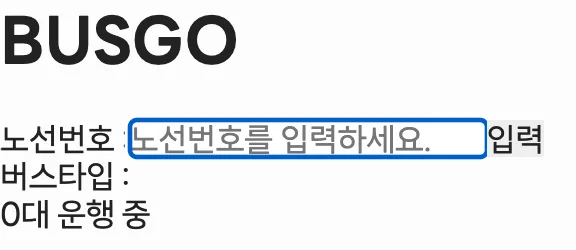
노선번호로 정보 및 실시간 위치 API 호출하기
xml데이터 객체로 변환하기
response 데이터를 받아올 때 대부분의 공공데이터 API는 xml데이터를 보내준다.
그래서 서버단에서 XML을 JSON으로 변환해서 보내는 과정을 거쳐야했다.
사용한 라이브러리는 xml2js다.
코드
const xml2js = require('xml2js');

router.get(`/info/:number`, async (req, res, next) => {
  try {
    const businfoXML = await axios
      .get(
        `http://apis.data.go.kr/6410000/busrouteservice/getBusRouteList?serviceKey=${process.env.BUS_DATA_API_KEY}&keyword=${req.params.number}`,
      )
      .then((res) => {
      	console.log(res.data)
        return res.data;
      });
  } catch (error) {
    next(error);
  }
});
GET 호출을 통해 노선정보를 가져올 경우 아래와 같이 xml 형식의 데이터가 반환된다.

그래서 xml2js를 사용해서 json 형식으로 변환 후 프론트로 보내준다.
코드
/**
 * @path {GET} /api/info/:number
 * @description 노선정보 가져오기
 */
router.get(`/info/:number`, async (req, res, next) => {
  try {
    const businfoXML = await axios
      .get(
        `http://apis.data.go.kr/6410000/busrouteservice/getBusRouteList?serviceKey=${process.env.BUS_DATA_API_KEY}&keyword=${req.params.number}`,
      )
      .then((res) => {
        console.log(res.data);
        return res.data;
      });

    /* XML to JSON */
    parser.parseStringPromise(businfoXML).then(function (result) {
      const businfoJSON = JSON.stringify(result);

      return res.status(200).send(businfoJSON);
    });
  } catch (error) {
    next(error);
  }
});
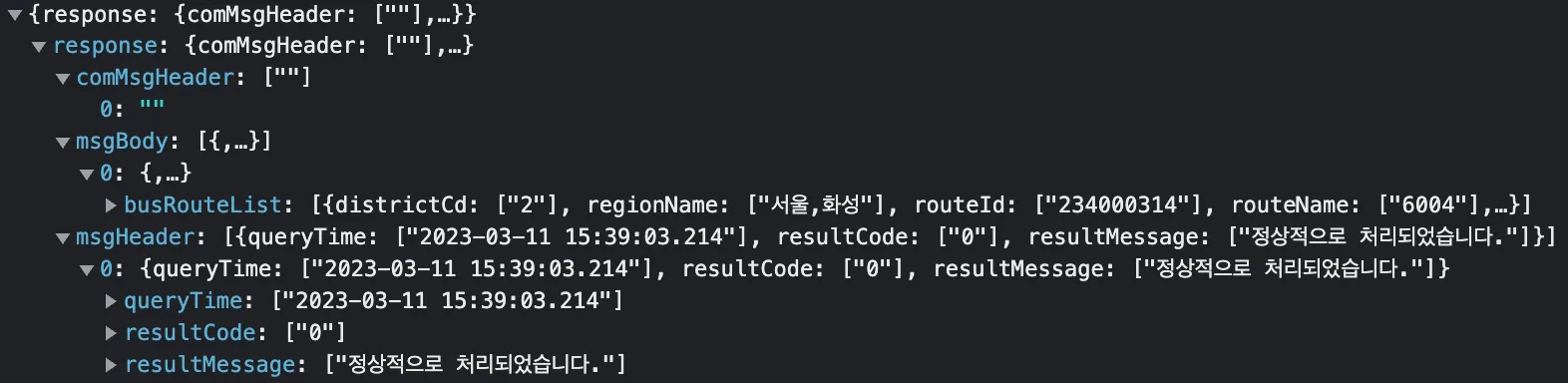
서버로 부터 받은 데이터를 콘솔에 찍어보면 아래와 같이 객체 형식의 데이터로 잘 받아진 것을 볼 수 있다.
노선 정보 가져오기
입력 폼에서 원하는 노선번호를 입력 하고 submit 하면 아래 함수가 실행된다.
코드
const handleGetBusInfo = useCallback(
    async (e) => {
      e.preventDefault();

      await axios.get(`/api/info/${busNumber}`).then((res) => {
        console.log(res.data);
        setBusType(res.data.response.msgBody[0].busRouteList[0].routeTypeName[0]);
      });
    },
    [busNumber],
  );
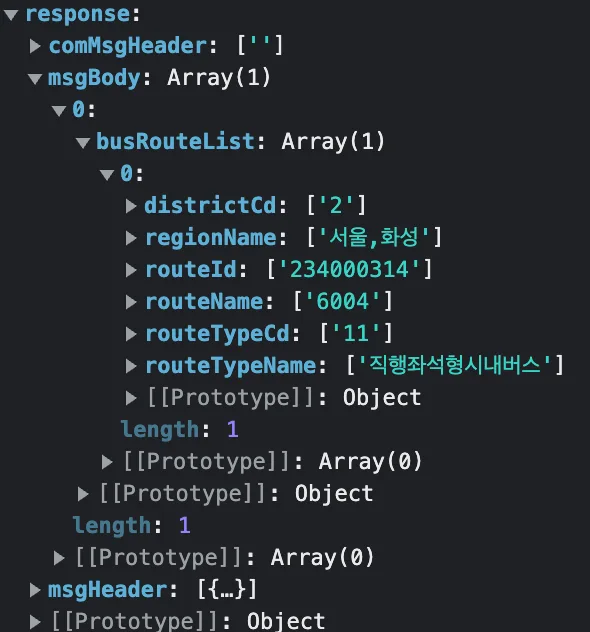
성공적으로 데이터를 받아오면 아래와 같이 버스 노선 정보에 대해 볼 수 있다.
노선 실시간 위치 가져오기
실시간 버스의 위치를 보기 위해선 위의 노선 정보 데이터에서 routeId를 사용해야한다. 그에 대한 코드는 아래와 같다.
코드
const handleGetBusInfo = useCallback(
    async (e) => {
      e.preventDefault();

      let busId;
      await axios.get(`/api/info/${busNumber}`).then((res) => {
        console.log(res.data);
        setBusType(res.data.response.msgBody[0].busRouteList[0].routeTypeName[0]);
        busId = res.data.response.msgBody[0].busRouteList[0].routeId[0];
      });

      await axios.get(`/api/location/${busId}`).then((res) => {
        console.log(res.data);
        setBusLocationList(res.data.response.msgBody[0].busLocationList);
      });
    },
    [busNumber],
);
빈 busId 변수를 선언만 해주고, 처음에 노선 정보를 가져올 때 busId에 routeId의 값을 할당해준다.
그리고 이어서 실시간 위치를 가져오는 API호출 할 때 busId를 params로 사용한다.
이로 인해 하나의 함수로 노선 정보와 실시간 위치까지 가져올 수 있게 되었다.
간단 렌더링 테스트
위의 데이터들을 기반으로 테스트용으로 버스타입과, 현재 운행 중인 버스의 대수를 렌더링해보자.
코드
return (
  <div id='app'>
    <h1>BUSGO</h1>
    <form onSubmit={handleGetBusInfo}>
      <label htmlFor='busNumber'>
        노선번호 :
        <input
          autoFocus
          autoComplete='off'
          type='text'
          id='busNumber-label'
          placeholder='노선번호를 입력하세요.'
          value={busNumber}
          onChange={onChangeBusNumber}
        />
      </label>
      <button type='submit'>입력</button>
    </form>
    <div>버스타입 : {busType}</div>
    <div>{busLocationList.length}대 운행 중</div>
  </div>
);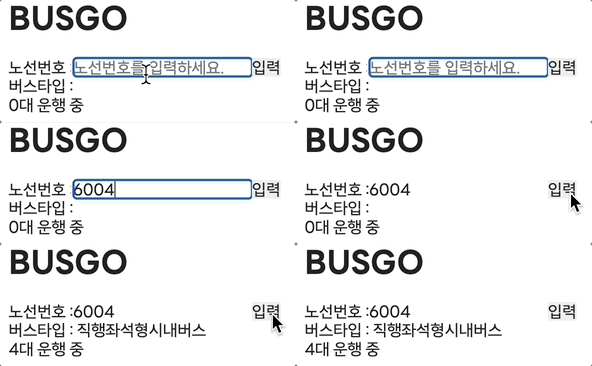
성공적으로 데이터를 가져왔다!
반응형